

WordPress 5.8, released in July 2021, replaced the classic Appearance → Widgets screen with a block-based widget editor. Sidebars and footers became block areas, and the drag-and-drop list of widgets disappeared.
For some sites that was fine. For many others it caused problems: themes designed around classic widget areas, widget plugins that expected the old screen, and clients who had learned the old way and now found something different.
The good news is that WordPress still includes the classic screen. It’s just switched off.
Option 1: a classic widgets plugin
The WordPress core team publishes an official Classic Widgets plugin, used on around two million sites. It has no settings: activate it and the classic screen returns in both Appearance → Widgets and the Customizer.
It’s a good choice if this is the only change you need.
Option 2: one line of code
The plugin works by telling WordPress not to use the block editor for widgets. You can do the same yourself with a filter:
add_filter( 'use_widgets_block_editor', '__return_false' );Add it to a child theme’s functions.php or a code snippet. Avoid editing a parent theme’s functions.php, because a theme update will remove your change.
Option 3: a module in a plugin you already run
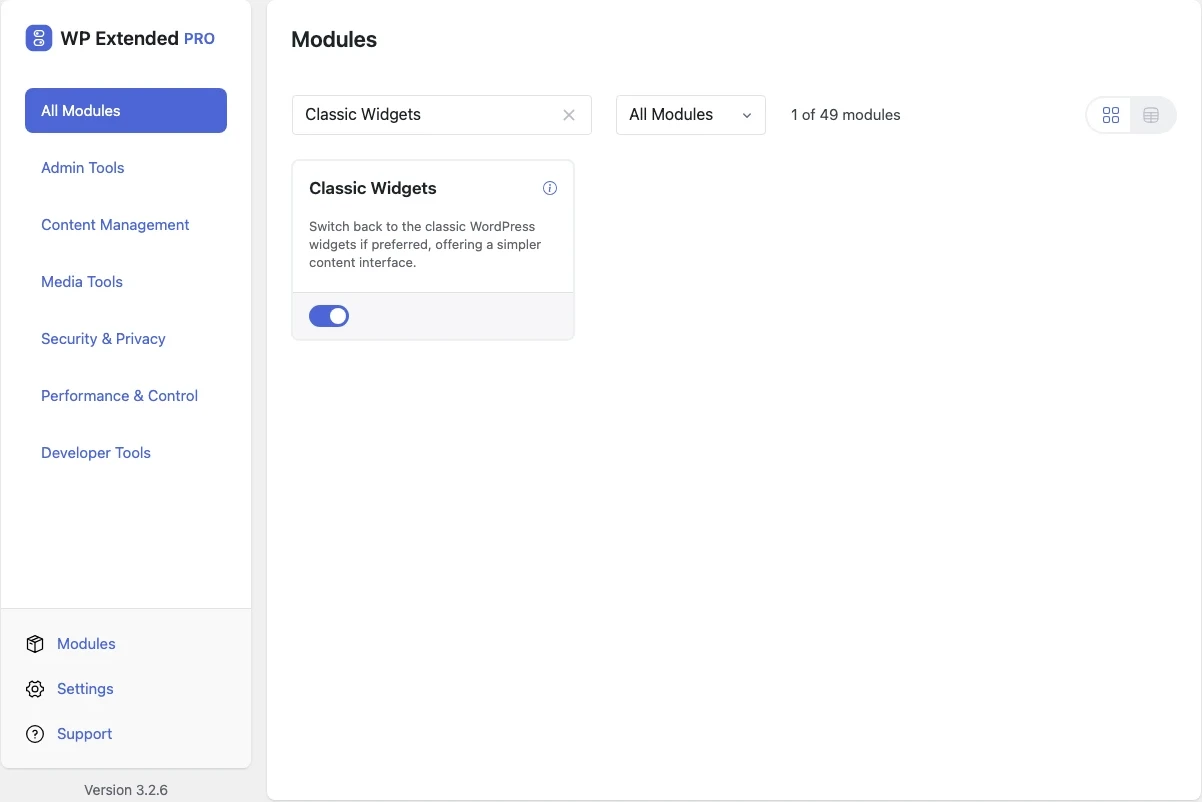
If you’re already using WP Extended, you don’t need another plugin. The free Classic Widgets module does the same job:
- Open WP Extended’s module screen.
- Switch on Classic Widgets under Content Management.
- Go to Appearance → Widgets. The classic drag-and-drop screen is back, and the Customizer’s widget panel uses it too.
Behind the switch it applies the same filter as Option 2 (and the older Gutenberg plugin’s equivalent), so it changes nothing else. Switch the module off and the block widget editor returns.
Which should you choose?
- Only need classic widgets? The official plugin or the one-line filter is the simplest route.
- Already running WP Extended, or tidying up a long plugin list? Use the module and avoid adding one more plugin to update.
- Want the classic post editor too? WP Extended’s Classic Editor module brings that back as well, and Pro lets you choose which post types use it.
- Comfortable with code? The Code Snippets module is a safe place for filters like this, with syntax checks before anything runs.
Should you switch back at all?
If your theme is a classic theme and your widgets work best on the old screen, there’s nothing wrong with using it. WordPress still ships it for exactly that reason.
If you’re building a new site, a block theme with the Site Editor is the direction WordPress is heading, and there you design headers, footers and sidebars with blocks rather than widgets.
Frequently asked questions
Will I lose my widgets if I switch back to classic widgets?
No. Your widget areas and the widgets in them stay where they are. If you added widgets as blocks in the newer editor, check each widget area after switching, because those are stored differently.
Does restoring classic widgets bring back the classic post editor too?
No. Widgets and the post editor are separate. To bring back the classic post editor as well, use a classic editor plugin or WP Extended's Classic Editor module.
Do block themes use widgets?
Mostly not. Block themes build headers, footers and sidebars in the Site Editor instead, so the Widgets screen may not appear. Classic widgets are for classic themes.
Written with the help of AI tools and checked against the WP Extended plugin code.