

Content often starts life as the wrong type. An “About” page published as a blog post. A set of service posts that should live in their own Services post type after a redesign. A page that would work better as a post so it appears in the blog.
WordPress has no button for this. The post type is set when the item is created, and the admin gives you no way to change it.
Why not just copy and paste?
The usual workaround is to create a new page, paste the content in and delete the post. It works, but you lose more than you’d think:
- The ID changes, so anything that referenced the old item by ID breaks.
- The publish date resets, along with the author unless you change it back.
- Custom fields, the featured image and revisions stay with the old item unless you copy each one across.
- Comments stay attached to the deleted post.
Changing the post type of the existing item avoids all of that, because nothing is copied: the same item simply becomes a page.
How to switch a post to a page
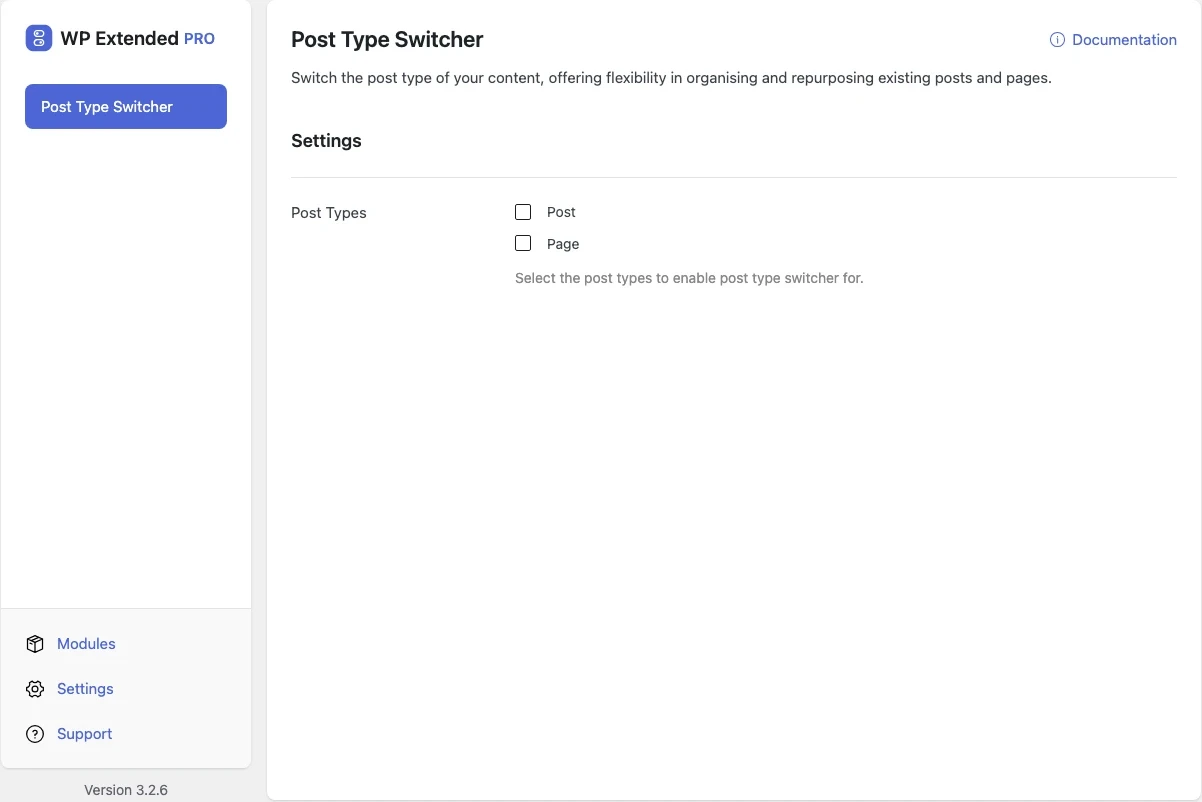
WP Extended’s Post Type Switcher module, part of Pro, adds the missing control.
- Open WP Extended’s module screen and switch on Post Type Switcher under Content Management.
- In its settings, choose which post types can be switched, for example Posts, Pages and your custom post types.
- Open the post in the editor, choose Page as the new post type and update.
The item keeps its ID, content, author and dates. Only its type changes.
Switching several at once
After a redesign you might need to move dozens of items. Select them on the list screen and change their post type with Bulk Edit, or change a single item from Quick Edit without opening the editor.
Switching requires permission to publish the new post type, so a contributor can’t use it to move content somewhere they couldn’t otherwise publish.
What to check after switching
The URL
With the common /%postname%/ permalink setting, posts and pages share the same URL form, so the address may not change. Custom post types usually have their own base, such as /services/my-service/, and post permalinks may include dates or a /blog/ prefix. If the address changes and the content was already published, add a redirect from the old URL so search engines and existing links follow it.
Categories and tags
Pages don’t use categories or tags. When you switch a post to a page, those terms stay stored but aren’t shown. Switch it back and they reappear. Taxonomies the new post type supports carry over.
The template
Pages and posts usually use different templates, so the item may look different after switching. Check it on the front end, and pick a page template if your theme offers one.
Menus and internal links
Links that use the item’s URL may need updating if the URL changed. Menus point at the item itself, so check them, but they normally follow it.
Related jobs
- Need a copy rather than a switch? Duplicate Post clones a post, page or custom post type in one click, including its featured image, taxonomies and custom fields. It’s free.
- Want to control the order your pages and custom post types appear in? Post Type Order adds drag-and-drop ordering.
Post Type Switcher is one of 51 modules in WP Extended. See pricing for Pro plans.
Frequently asked questions
Can WordPress change a post to a page without a plugin?
Not from the admin. The post type is stored in the database, so without a plugin you would have to edit it directly, which is easy to get wrong. A post type switcher changes it safely from the editor.
Will changing the post type change the URL?
It can. Pages and custom post types often use a different permalink structure from posts. If the content was already published, add a redirect from the old URL.
Do I lose comments, featured images or custom fields?
No. The item keeps its ID, so everything attached to it stays attached. Whether the new type displays it depends on what that post type supports.
Written with the help of AI tools and checked against the WP Extended plugin code.